Finncast Studio 7.0: A Complete Guide to Professional Live Streaming and Broadcast Production
In the world of modern broadcasting and live streaming, having reliable production software is essential for creating professional-quality content. Whether you are managing a television channel, streaming live events, producing online shows, or running a corporate broadcast, choosing the right software can significantly improve workflow efficiency and production quality. Finncast Studio is a versatile broadcasting and production platform designed to help users create, manage, and deliver professional live video content with ease.
This comprehensive guide explores Finncast Studio, its workflow, key features, advantages, limitations, and the best use cases for broadcasters, content creators, and media professionals.
Step 1: Create a New Project
Getting started with Finncast Studio begins by creating a new project. The software provides an organized workspace where users can set up production parameters according to their specific broadcasting requirements. During project creation, users can configure video resolution, frame rate, audio settings, and output formats to ensure compatibility with their target platforms.
The project setup process is designed to be user-friendly, making it suitable for both beginners and experienced broadcast professionals. By properly configuring project settings from the start, users can establish a stable production environment that minimizes technical issues later in the workflow. This foundational step helps ensure smoother production and higher-quality output throughout the entire broadcasting process.
Step 2: Import Media / Setup
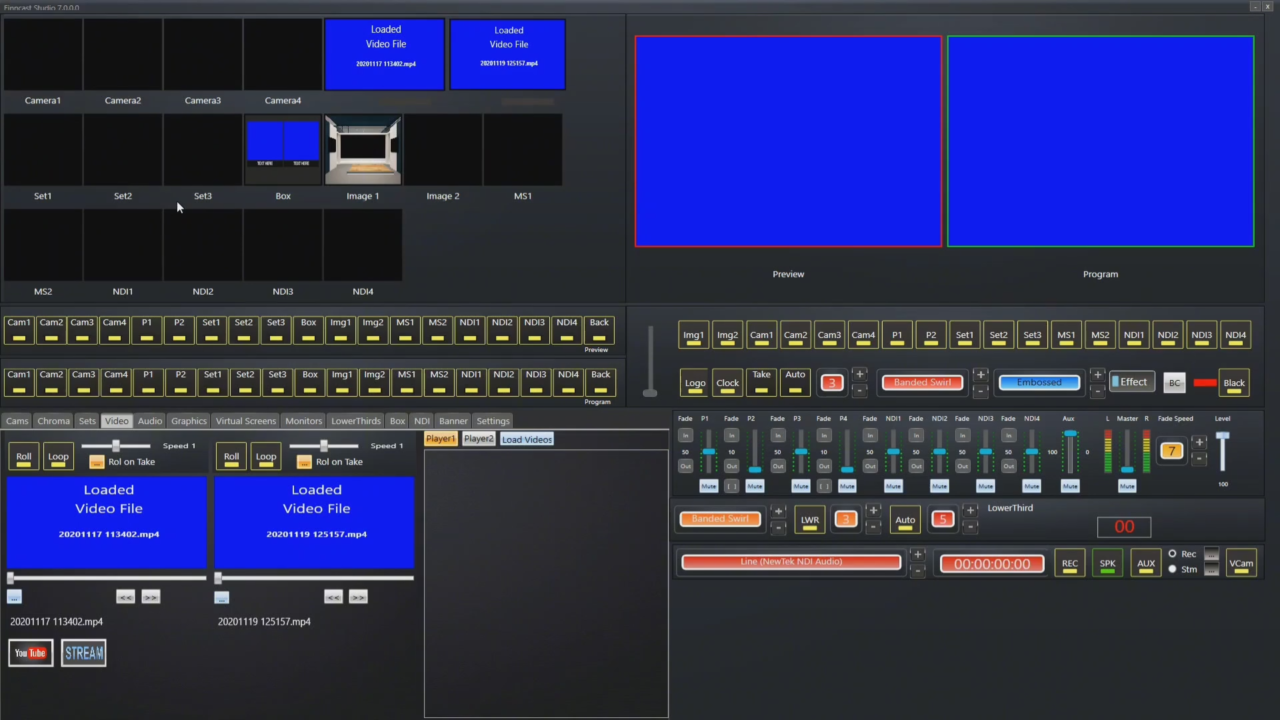
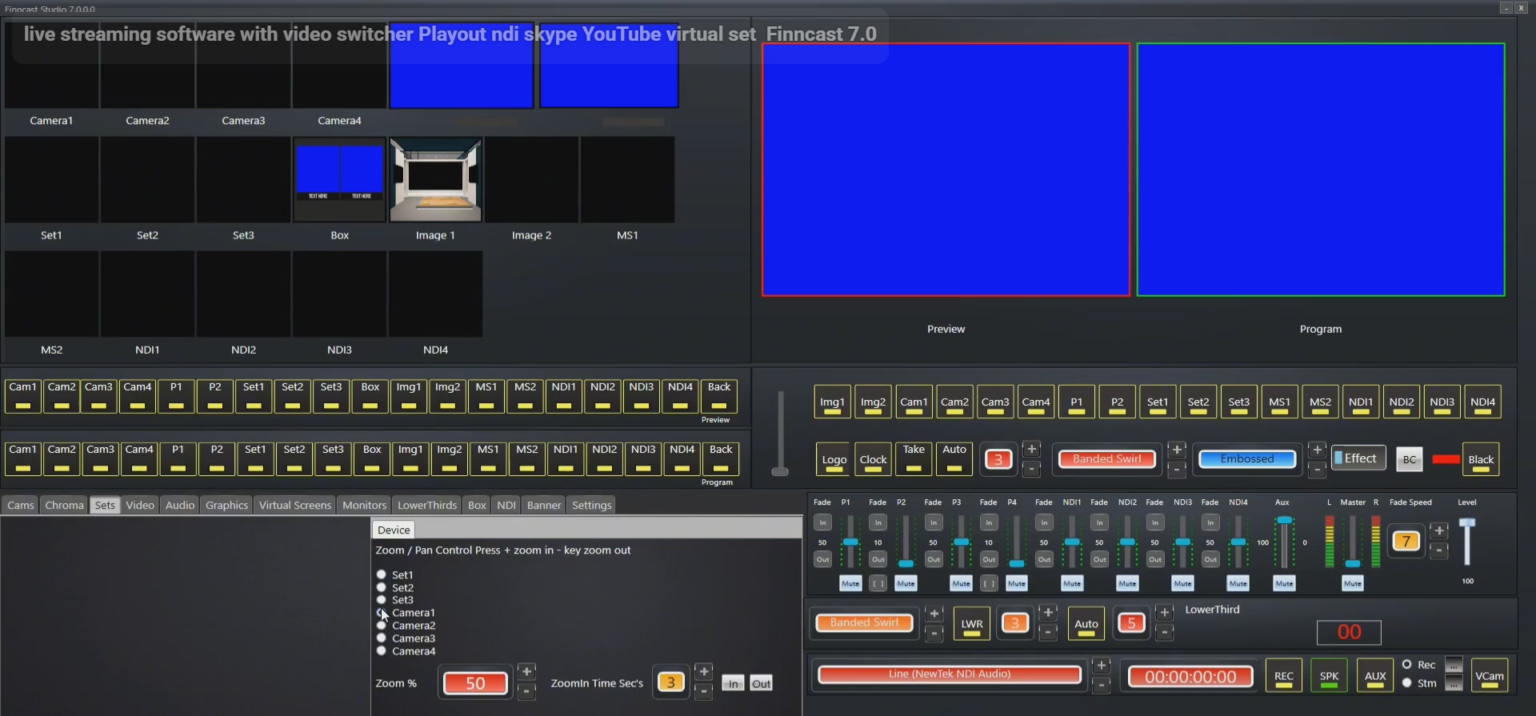
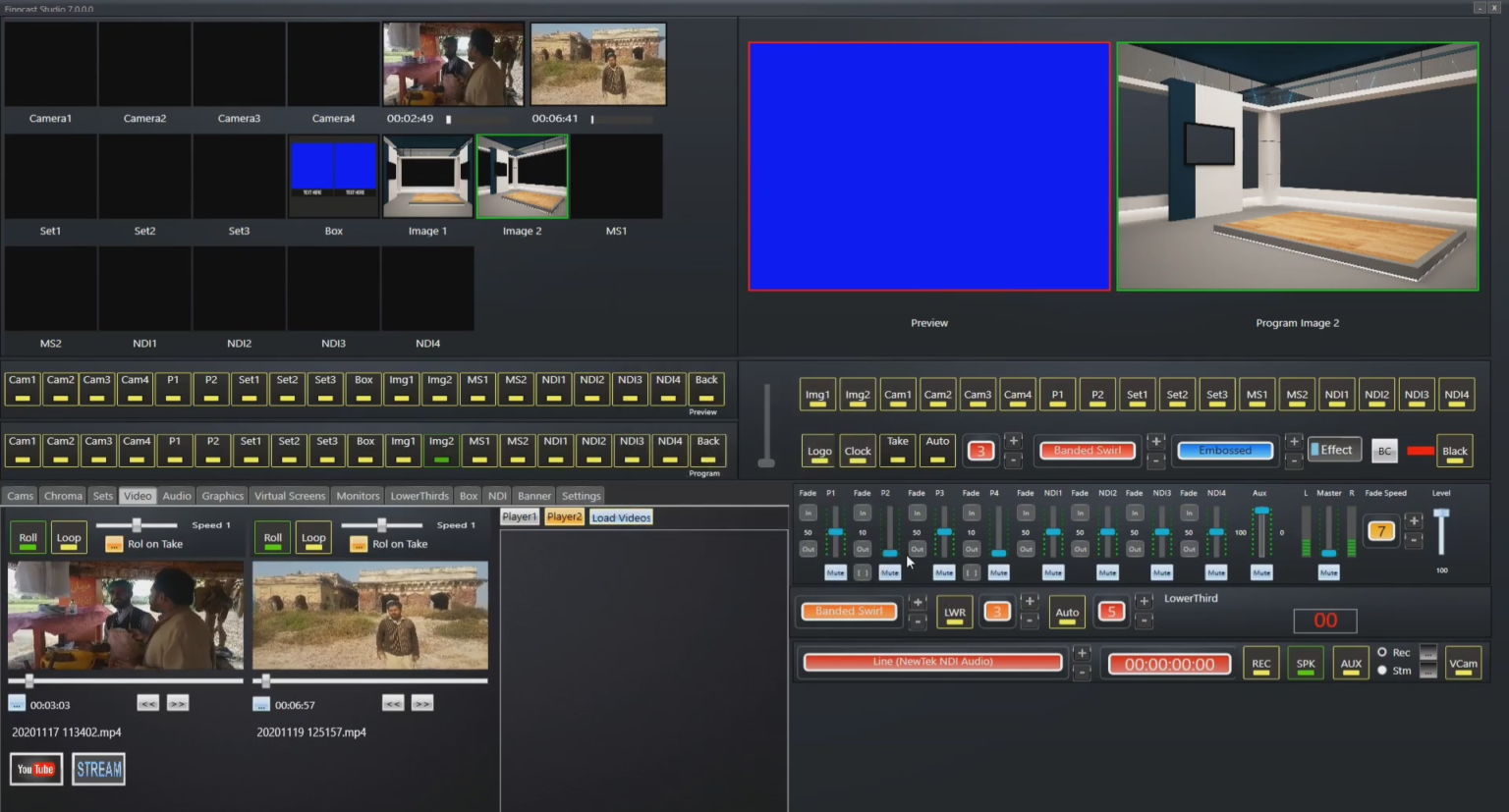
After creating a project, the next step is importing media assets and configuring production sources. Finncast Studio supports various media formats, allowing users to bring in video clips, images, graphics, logos, audio tracks, and other multimedia elements required for production. This flexibility enables broadcasters to build rich and engaging visual presentations.
Users can also configure live video sources such as cameras, capture cards, IP streams, and remote feeds. The software allows easy source management through an intuitive interface, making it simple to organize assets and switch between multiple inputs during production. Proper setup at this stage ensures a streamlined workflow and efficient content management throughout the broadcast.
Step 3: Main Workflow (Editing, Production, and Broadcasting)
The core strength of Finncast Studio lies in its production and broadcasting workflow. Once media assets and sources are configured, users can begin building scenes, layouts, and production sequences. The software enables real-time switching between multiple video sources, making it suitable for live events, interviews, news broadcasts, and online streaming productions.
Users can create professional presentations by combining video feeds, graphics overlays, lower-thirds, tickers, and branding elements. The real-time production environment helps operators manage broadcasts efficiently while maintaining visual consistency. Whether producing a simple webcast or a complex multi-camera event, Finncast Studio offers the tools needed to maintain professional broadcast standards and audience engagement.
Step 4: Add Features (Effects, Tools, and Customization)
One of the major benefits of Finncast Studio is its extensive collection of production features and customization tools. Users can enhance their broadcasts with transitions, visual effects, text overlays, animated graphics, and branding packages. These tools help create polished productions that look professional and visually appealing.
Additional customization options allow broadcasters to design unique workflows tailored to their specific production needs. Users can configure scene layouts, automate certain production tasks, manage playlists, and integrate various graphics elements. This flexibility makes Finncast Studio suitable for a wide range of broadcasting environments, from small online productions to larger professional media operations requiring advanced control and customization.
Step 5: Export / Save Output
Once production is complete, Finncast Studio offers multiple output and export options. Users can save recordings locally for later editing, archiving, or distribution. The software also supports live streaming outputs, enabling direct broadcasting to online platforms, websites, and content delivery networks.
Flexible export settings allow users to select appropriate formats, resolutions, and compression settings based on project requirements. This ensures that final content maintains optimal quality while remaining compatible with various viewing platforms. Efficient export capabilities make the software practical for both live and on-demand content production workflows.
Best Use Cases for Finncast Studio
Finncast Studio is suitable for various broadcasting and production scenarios. Its versatility makes it valuable for professionals working across multiple industries and content formats.
Common use cases include:
- Live event broadcasting
- Television production
- Online streaming channels
- News and media broadcasting
- Corporate communications
- Educational webinars
- Religious and community broadcasts
- Sports event coverage
- Virtual conferences
- Multi-camera production environments
Organizations seeking reliable live production software can benefit from Finncast Studio’s flexible features and professional workflow capabilities.
Advantages and Limitations
Advantages
Finncast Studio offers several advantages that make it appealing for broadcasters and content creators. Its user-friendly interface simplifies complex production tasks, allowing operators to focus on content rather than technical challenges. The software supports multiple media formats and video sources, making it adaptable to various production environments.
Additional strengths include:
- Professional live production capabilities
- Flexible scene and source management
- Support for graphics and overlays
- Real-time switching functionality
- Customizable workflows
- Multiple export and streaming options
- Suitable for beginners and professionals
- Scalable for different production sizes
These advantages help streamline broadcasting operations while maintaining high production quality.
Limitations
Despite its strengths, Finncast Studio download also has some limitations that users should consider before implementation. Like many professional broadcast solutions, advanced features may require time to learn and master, particularly for users with limited production experience.
Potential limitations include:
- Learning curve for advanced workflows
- Hardware requirements for larger productions
- Some features may require additional configuration
- Performance can depend on system specifications
- Complex setups may require technical knowledge
Understanding these limitations can help users prepare appropriately and maximize the software’s capabilities.
Alternatives to Finncast Studio
While Finncast Studio offers a comprehensive production environment, several alternative solutions are available depending on user requirements and budget considerations.
Popular alternatives include:
- OBS Studio
- vMix
- Wirecast
- Livestream Studio
- XSplit Broadcaster
- TriCaster
- Streamlabs Desktop
- VidBlasterX
- VMix Pro
- CasparCG-based solutions
Each platform offers unique features, pricing models, and workflow approaches, making it important to evaluate specific production needs before selecting a solution.
Frequently Asked Questions (FAQs)
What is Finncast Studio used for?
Finncast Studio is primarily used for live video production, broadcasting, streaming, and professional media content creation.
Is Finncast Studio suitable for beginners?
Yes. The Finncast Studio software provides an accessible interface while also offering advanced tools for experienced broadcasters and production teams.
Can Finncast Studio handle multi-camera productions?
Yes. Users can manage multiple camera feeds and switch between sources in real time during live productions.
Does Finncast Studio support live streaming?
Yes. The platform supports live streaming workflows and can deliver content to various online destinations.
Can I add graphics and overlays in Finncast Studio?
Yes. Users can incorporate logos, lower-thirds, text overlays, animations, and other visual elements into productions.
What industries commonly use Finncast Studio?
Media organizations, broadcasters, educational institutions, corporations, event producers, and content creators commonly use broadcast production software like Finncast Studio.
Conclusion
Finncast Studio is a powerful and flexible broadcasting solution designed for professional live production, streaming, and content delivery. Its combination of media management, real-time switching, graphics integration, and customizable workflows makes it suitable for a wide range of broadcasting applications. From online streaming and corporate events to television production and educational broadcasting, the software provides the tools necessary to create engaging and professional-quality content.
For organizations and creators seeking a reliable live production platform, Finncast Studio offers a balanced mix of usability, flexibility, and professional functionality. By understanding its workflow, features, advantages, and limitations, users can determine whether it is the right solution for their broadcasting and streaming requirements.
Download
Telegram ID
eMail