SunSky Sky On Air 2026: Professional Broadcast Playout and Channel Automation Software
SunSky Sky On Air is a broadcast automation and playout solution designed for television channels, IPTV services, cable networks, web broadcasters, and other professional media environments. It combines scheduled media playback, live input handling, graphics, branding, and streaming capabilities into a centralized workflow. The platform is designed to support both automated and live broadcasting, helping operators maintain consistent programming throughout the day. With support for multiple media formats, scheduling tools, CG overlays, and IP-based workflows, SunSky Sky On Air can be useful for broadcasters looking to streamline daily channel operations.
Step 1: Create a New Project
Getting started with SunSky Sky On Air begins with organizing the channel or broadcast workflow. Instead of treating the software like a traditional video editor, it is better to think of it as a complete playout environment where media, schedules, graphics, live sources, and output destinations work together.
A new project should begin with clearly defined channel requirements. Operators can prepare the target video format, audio configuration, branding elements, and output method before building the playlist. This approach makes the workflow easier to manage, especially for channels that operate continuously or need automated programming throughout the day.
Before going on air, it is also important to establish a reliable media library and scheduling structure. Proper preparation can reduce last-minute changes and help operators maintain a predictable broadcast routine.
Step 2: Import Media / Setup
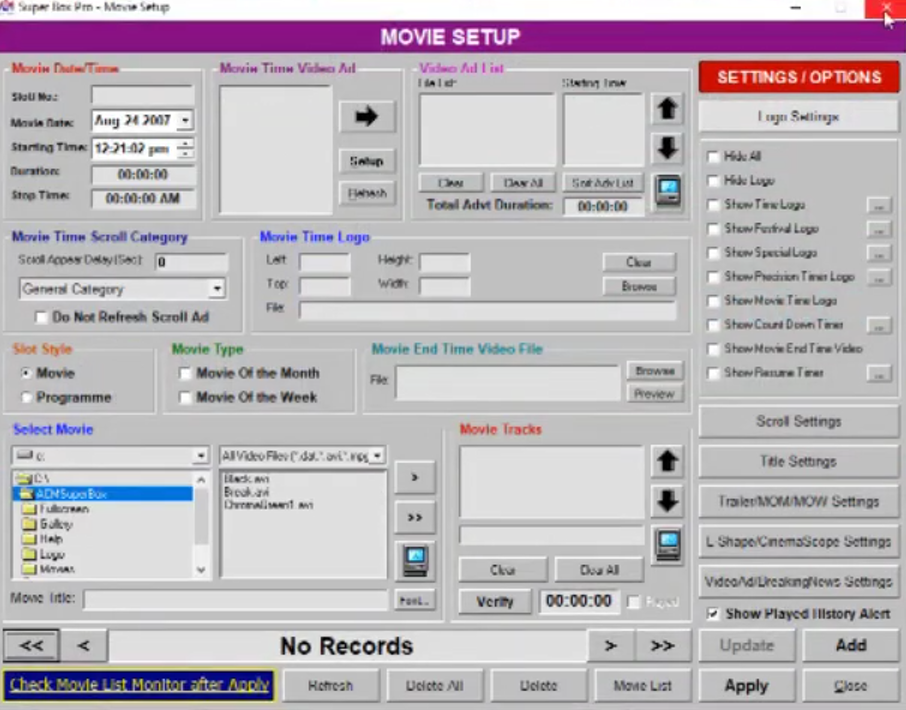
The next step is to add the media required for the channel. SunSky Sky On Air supports a broad range of compression formats and containers, including MPEG-2, DV, DVCPro, AVC/H.264, HEVC/H.265, XAVC, MP4, MXF, GXF, and other commonly used broadcast formats. This makes it suitable for workflows where content arrives from different production sources.
After importing content, operators can organize clips into playlists and prepare them for scheduled playback. Individual clips can be trimmed, repositioned, or adjusted within the playlist, while different resolutions and formats can be mixed in a single workflow.
For a professional setup, users should also configure live inputs, audio routing, output destinations, and graphics before starting the final schedule. The software supports live sources through options such as SDI and IP-based protocols, depending on the configured system.
Step 3: Main Workflow (Editing and Playout)
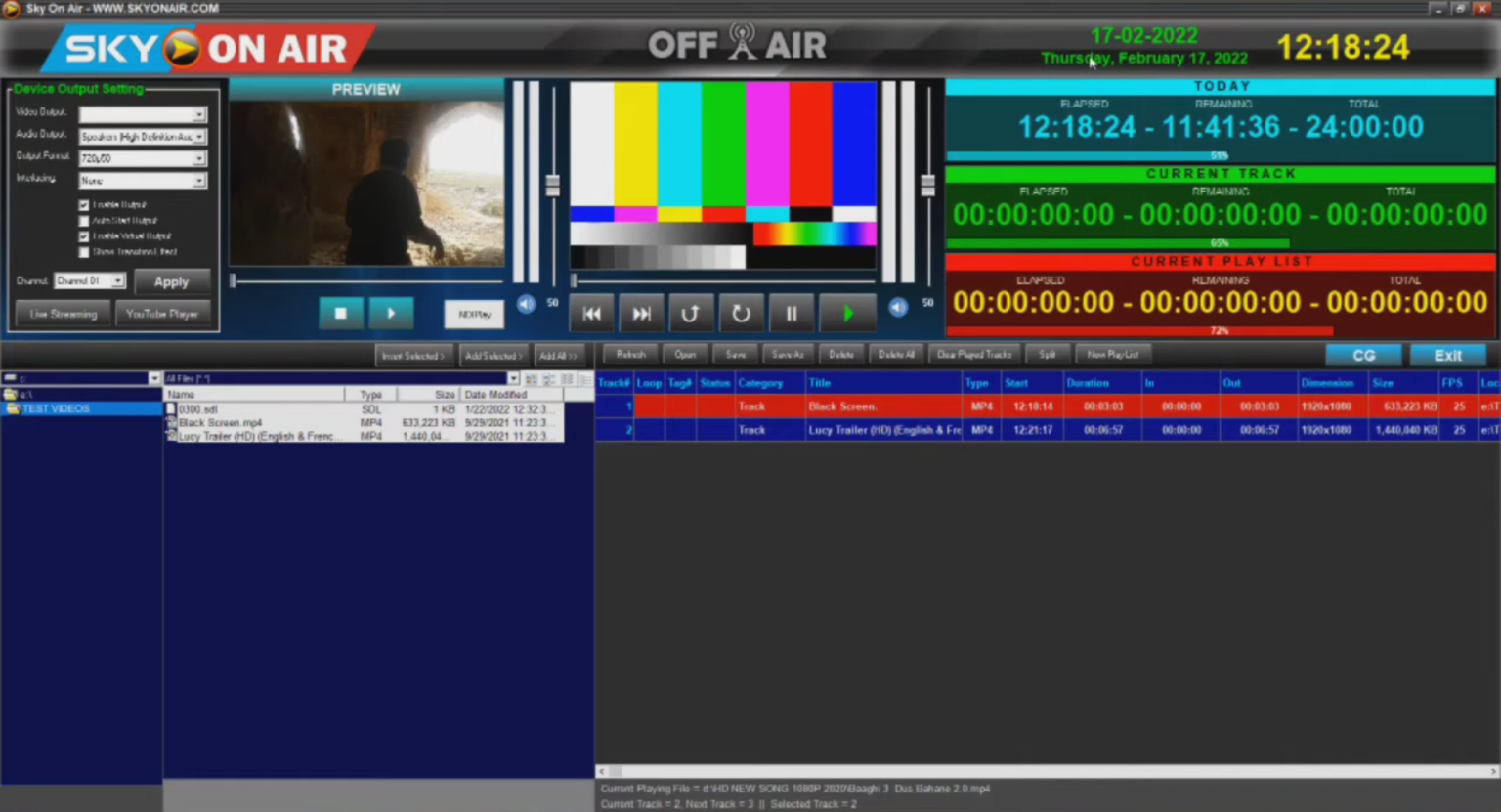
The central workflow of SunSky Sky On Air revolves around playlist management and automated scheduling. Operators can build a sequence of programs, commercials, promos, news clips, music, and other content, then assign timing information to create an organized broadcast schedule.
Its time-based scheduling capabilities are particularly useful for automated television operations. The system is designed to manage scheduling conflicts and allows playlist changes while content is already being prepared for broadcast. Operators can also skip to another item or jump within the playlist when programming requirements change.
Live programming can also be incorporated into the workflow. SunSky Sky On Air is designed to combine scheduled playout with live sources, allowing broadcasters to move between recorded programming and live content while maintaining channel branding and graphics.
This makes the platform useful for channels that need both automation and manual control rather than relying entirely on prerecorded programming.
Step 4: Add Features, Effects, and Customization
Graphics and channel branding are an important part of professional broadcasting. SunSky Sky On Air includes a CG engine that can be used for logos, lower thirds, captions, breaking-news elements, and other on-screen information. Operators can work with static or animated logos and adjust CG content during an on-air session.
The software also supports multiple layers of CG content and multilingual text, providing flexibility for broadcasters serving different audiences. Text properties, animation behavior, positioning, and other elements can be changed manually or through automated workflows.
Additional features include NDI input and output, live-source integration, remote playout control, audio routing, automatic loudness control, and multiple streaming/output protocols. Depending on the edition and configuration, the platform can support sophisticated broadcast workflows beyond simple playlist playback.
Step 5: Export / Save Output
Once the playlist, graphics, audio, and live sources are configured, the final stage is to send the programmed content to its intended broadcast or streaming destination. SunSky Sky On Air supports output workflows involving SDI and IP-based streaming technologies, depending on the selected configuration and hardware.
For broadcasters, saving and maintaining reliable schedules is just as important as creating them. Detailed playout logs can help operators review what was transmitted and identify issues during a broadcast. This can be valuable for channels that require regular monitoring, reporting, and operational consistency.
The system is designed for environments where continuous playout is required, including television channels, IPTV, cable head-ends, web channels, corporate television, and other distribution applications.
Best Use Cases for Logosys Multi Channel Playout
Although the main focus of this article is SunSky Sky On Air, Logosys Multi Channel Playout can also be considered by broadcasters evaluating multi-channel automation solutions. Logosys offers features aimed at 24/7 playout, multi-format playback, streaming, graphics overlays, and channel automation. (Logosys)
Common use cases include:
- Cable television channel automation
- IPTV and web TV broadcasting
- 24/7 entertainment channels
- News and information channels
- Digital signage and corporate channels
- Multi-format video streaming
- Graphics and advertising insertion
- Automated playlist-based broadcasting
The best option ultimately depends on channel requirements, hardware infrastructure, desired automation level, graphics needs, and available technical support.
Advantages and Limitations
Advantages
SunSky Sky On Air offers several capabilities that make it attractive for professional and semi-professional broadcasting environments:
- Broad support for video formats and containers
- Automated time-based scheduling
- 4K playout support
- Live input integration
- Static and animated logo support
- CG and lower-third capabilities
- NDI input and output
- Multi-language audio workflows
- IP streaming and output options
- On-air playlist control
- Detailed playout logging
- Support for automated and live broadcasting workflows
Its modular approach can also make the software suitable for different types of broadcast operations, from conventional television channels to IPTV and web-based distribution.
Limitations
Despite its extensive feature set, SunSky Sky On Air may not be the ideal solution for every broadcaster. Professional broadcast software requires suitable hardware, proper configuration, and an understanding of video, audio, networking, and transmission workflows.
Some advanced functions may also depend on the specific Sky On Air edition being used. Hardware compatibility and system requirements should therefore be checked carefully before deployment. The official specifications list different requirements and supported hardware for different editions.
Alternatives to SunSky Sky On Air
Broadcasters looking for alternatives to SunSky Sky On Air can evaluate other professional playout and broadcast automation platforms based on their operational requirements.
Potential alternatives include:
- Logosys Multi Channel Playout
- PlayBox Neo
- Cinegy Air
- Etere
- CasparCG
- Grass Valley broadcast automation solutions
Each platform has a different balance of automation, graphics, scheduling, live production, channel management, hardware support, and pricing. A smaller web broadcaster may prioritize simplicity and streaming, while a television network may require advanced scheduling, redundancy, newsroom integration, and broadcast-grade hardware support.
Frequently Asked Questions (FAQs)
What is SunSky Sky On Air?
SunSky Sky On Air is broadcast automation and playout software designed for television, IPTV, cable, web broadcasting, and other professional media applications. It combines scheduled playback, live inputs, graphics, branding, and output functionality in one workflow.
Can SunSky Sky On Air support 4K playout?
Yes. The Sky On Air product information lists seamless 4K playout with CG branding among its supported capabilities. Actual performance depends on the selected edition and compatible hardware configuration.
Does SunSky Sky On Air support live broadcasting?
Yes. The software includes a live engine designed to work alongside playout and CG functionality, allowing broadcasters to integrate live sources into scheduled programming. (Sunsky Software)
Is SunSky Sky On Air suitable for IPTV?
Yes. The platform is designed for IPTV channels and supports IP-based inputs and outputs, making it suitable for various internet and network-based broadcasting environments. (Sunsky Software)
Does it support broadcast graphics?
Yes. SunSky Sky On Air includes CG capabilities for logos, lower thirds, breaking-news content, text, and other on-screen graphics. Graphics can also be adjusted during on-air operation. (Sunsky Software)
Conclusion
SunSky Sky On Air is a versatile broadcast automation solution for organizations that need reliable scheduled playout combined with live sources, graphics, branding, and streaming capabilities. Its support for multiple media formats, automated scheduling, 4K workflows, IP outputs, NDI, CG overlays, and on-air playlist control makes it suitable for a wide range of modern broadcasting environments.
For beginners, the most important approach is to build the workflow systematically: prepare the project, organize media, create schedules, configure graphics and live sources, test the output, and then move toward automated operation. For professional broadcasters, the right configuration and compatible hardware are equally important. Overall, SunSky Sky On Air provides a practical foundation for managing continuous television, IPTV, cable, and web broadcasting operations without making the workflow unnecessarily complicated.
Download
Telegram ID
eMail
Request for One Day Pro Demo For Free Pro Demo Download