Witech Wiplay 2026.2: A Complete Guide to Professional Media Playback and Playout
In modern broadcasting, reliable media playback is essential for television channels, production studios, live events, and digital media operations. Witech Wiplay is designed for users who need an organized and practical environment for managing and playing media content as part of a professional workflow. Whether you are setting up a broadcast playlist, preparing content for a live production, or managing scheduled media, understanding how to use Witech Wiplay can help create a smoother and more efficient operation.
This guide explains the basic Witech Wiplay workflow, from creating a project and importing media to customizing content and saving the final output. It is written for beginners while also covering useful workflow considerations for experienced media professionals.
Step 1: Create a New Project
The first step when working with Witech Wiplay is to establish a new project or workspace for your media operation. A well-organized project provides a central environment where your content, playlists, settings, and production elements can be managed efficiently.
Before adding media, consider how the project will be used. For example, a television channel may organize content according to daily programming, while a live event operator may create a project around a specific production.
When creating a project, pay attention to:
- Project organization and naming
- Media categories
- Playlist requirements
- Output and playback settings
- Content scheduling needs
A structured project makes it easier to locate files and manage large amounts of content later. For beginners, starting with a simple project structure is recommended before moving toward more advanced workflows.
Step 2: Import Media / Setup
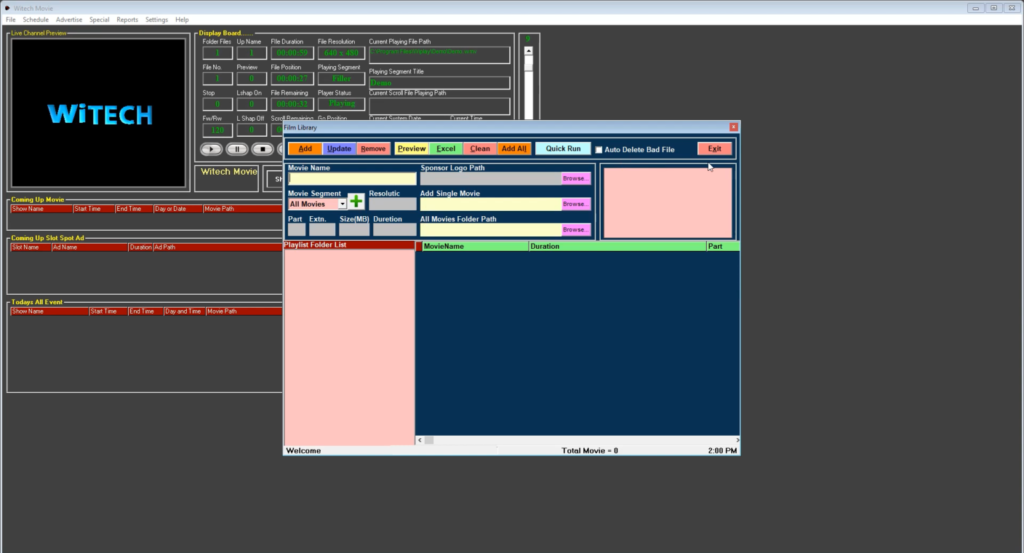
After creating a project, the next stage is importing the media required for playback. Depending on the production environment, this may include video clips, graphics, audio files, advertisements, promos, or other broadcast assets.
Organizing content before playback is important because professional playout workflows often involve many different media files. Clear file names and logical categories can reduce confusion and help operators work faster.
During setup, review your media carefully and make sure the required files are available and properly organized. It is also useful to establish a consistent folder structure for programs, commercials, station branding, and other recurring content.
For a reliable Witech Wiplay media playback workflow, operators should also consider the performance of the computer system, available storage, media formats, and output configuration.
Step 3: Main Workflow (Editing and Playback)
The main Witech Wiplay workflow focuses on arranging and controlling content for playback. Once media has been imported, operators can organize items according to the intended broadcast or production sequence.
A playlist-based approach can make daily operations easier. Content can be placed in a logical order so the operator can monitor what is currently playing and what is scheduled next.
A typical workflow may include:
- Selecting the required media.
- Arranging clips in the desired sequence.
- Reviewing the playlist.
- Checking playback timing.
- Monitoring the output.
- Making changes when necessary.
For broadcast environments, accuracy is particularly important. Operators should verify program durations, transitions, advertisements, and other scheduled elements before going live.
The goal is to create a workflow that minimizes manual intervention while maintaining control over the content being played.
Step 4: Add Features (Effects, Tools, and Customization)
After the basic playlist has been prepared, additional features can be used to improve the overall production workflow. Depending on the configuration and available functionality, users may work with playback controls, graphics, transitions, branding elements, or other customization options.
Customization can be especially useful for broadcasters that need consistent visual presentation. Station logos, promotional material, information graphics, and other visual elements can help create a recognizable channel identity.
When adding features, simplicity should remain a priority. Too many unnecessary elements can make a workflow difficult to operate. Instead, focus on features that provide genuine value to the production.
Useful customization areas may include:
- Channel branding
- Playlist organization
- Playback controls
- Visual presentation
- Content sequencing
- Operational settings
A well-designed setup can help operators maintain consistency while reducing repetitive manual tasks.
Step 5: Export / Save Output
The final stage involves saving the project and preparing the configured workflow for actual use. Depending on the production environment, the output may be intended for broadcast playback, studio production, live events, or another professional media application.
Before finalizing the project, review all important settings and confirm that the correct media has been included. It is also good practice to test playback before using the project in a live environment.
A final checklist can include:
- Confirming all media files are available
- Checking playlist order
- Reviewing playback timing
- Testing audio and video
- Verifying output settings
- Saving the project configuration
Proper preparation at this stage can prevent avoidable problems during live operation.
Best Use Cases for Witech Wiplay
Witech Wiplay can be useful in a variety of professional media environments where organized playback and content management are important.
Common use cases include:
- Television channel playout
- Broadcast media playback
- Live event production
- Studio environments
- Promotional content playback
- Digital signage workflows
- Media library management
- Scheduled programming operations
It can be particularly valuable for teams looking for a straightforward workflow for organizing and controlling media content without unnecessarily complicated procedures.
Advantages and Limitations
Advantages
Witech Wiplay offers several potential benefits for media operators and production teams. Its workflow can help users organize content efficiently and maintain better control over playback operations.
Key advantages include:
- Organized media playback workflow
- Practical playlist management
- Suitable for professional media environments
- Useful for scheduled content operations
- Flexible approach to content organization
- Beginner-friendly workflow when properly configured
For organizations managing recurring programming, having a structured playback environment can save operational time and make daily content management more predictable.
Limitations
Like any professional media software, Witech Wiplay may not be ideal for every production environment. Its suitability depends on the user’s requirements, existing infrastructure, media formats, and desired level of automation.
Potential limitations may include:
- Setup requirements can vary by workflow
- Advanced users may require additional production tools
- Performance depends on the underlying system
- Complex broadcast operations may require additional infrastructure
- Users may need time to become familiar with the workflow
Before implementing any playout solution, organizations should evaluate their specific technical and operational requirements.
Alternatives to Witech Wiplay
Users researching Witech Wiplay alternatives may also consider other professional media playback, playout, automation, and broadcast graphics solutions. The right choice depends on factors such as channel size, automation requirements, hardware infrastructure, playlist management, graphics support, and budget.
When comparing alternatives, consider:
- Media format compatibility
- Playlist and scheduling capabilities
- Automation features
- Graphics integration
- Output support
- System performance
- Ease of operation
- Scalability
Rather than choosing software based only on its feature list, it is better to select a solution that fits the actual workflow of the production team.
Frequently Asked Questions (FAQs)
What is Witech Wiplay?
Witech Wiplay is a media playback and playout-oriented solution designed to help users organize and manage media content for professional playback workflows.
Is Witech Wiplay suitable for beginners?
It can be suitable for beginners when the project is configured with a simple and organized workflow. New users should start with basic media importing and playlist management before exploring more advanced functions.
What type of media can be managed?
The available media support depends on the software configuration and production environment. Users should verify that their required video, audio, and graphics formats are compatible before building a complete workflow.
Can Witech Wiplay be used for broadcast operations?
Witech Wiplay can be considered for broadcast-oriented playback workflows where reliable media organization and content control are required. The exact suitability depends on the technical requirements of the broadcaster.
What should I check before using it in a live production?
Always test media playback, playlist order, audio and video output, system performance, and the overall project configuration before using the setup for a live production.
Conclusion
Witech Wiplay provides a practical approach to organizing and managing media playback for professional production environments. From creating a project and importing content to arranging playlists, adding customization, and preparing the final output, a structured workflow can make media operations more efficient and reliable.
For beginners, the best approach is to start with a simple project and gradually introduce additional features as the workflow becomes familiar. For professional users, careful configuration, media organization, and pre-production testing are essential. By focusing on these fundamentals, Witech Wiplay can become a useful part of a structured media playback and playout workflow.
Download
Telegram ID
eMail
Request for One Day Pro Demo For Free Pro Demo Download