MultiCast: Complete Guide to Professional Live Streaming and Multi-Platform Broadcasting
Live streaming has become an essential part of content creation, online education, gaming, corporate communication, and digital marketing. Whether you are streaming a webinar, broadcasting a live event, or managing multiple online platforms simultaneously, having reliable broadcasting software can make a significant difference. MultiCast is designed to simplify live streaming workflows while providing users with powerful tools for managing multiple destinations from a single interface.
In this guide, you’ll learn how to use MultiCast step by step, explore its best use cases, understand its strengths and limitations, and discover some popular alternatives. Whether you’re a beginner or an experienced broadcaster, this guide will help you make the most of MultiCast.
Step 1: Create a New Project
The first step in using MultiCast is creating a new broadcasting project. After launching the software, start a new session by selecting the appropriate project settings. Configure your video resolution, frame rate, audio settings, and streaming preferences according to your broadcasting requirements. Selecting the correct configuration from the beginning helps maintain stable performance throughout the streaming process and minimizes the need for later adjustments.
It is also recommended to organize your project before adding content. Naming the project properly and preparing your broadcasting assets in advance makes it easier to manage live productions, especially when working on complex streaming events involving multiple scenes or media sources.
Step 2: Import Media / Setup
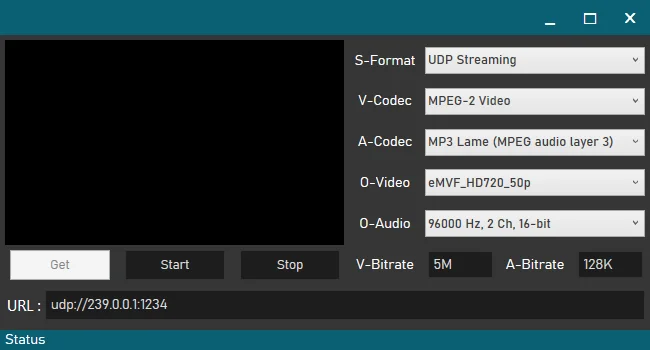
Once the project is ready, import the media and configure the required input sources. MultiCast supports adding cameras, microphones, video files, images, presentation slides, and other multimedia content. Depending on your production requirements, you can also integrate capture devices and network streams.
Take a few minutes to verify your audio levels, camera positioning, and media playback before going live. Proper setup reduces technical issues during the broadcast and ensures viewers receive high-quality video and clear audio throughout the stream.
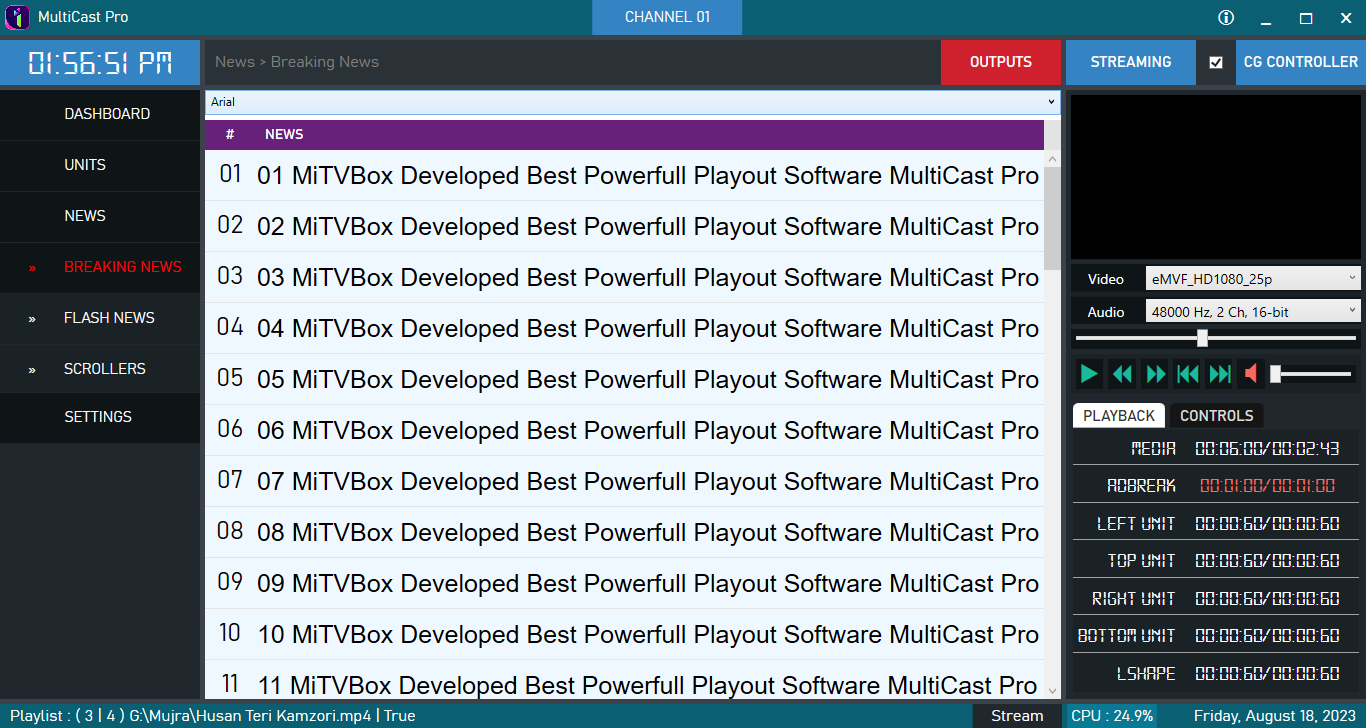
Step 3: Main Workflow
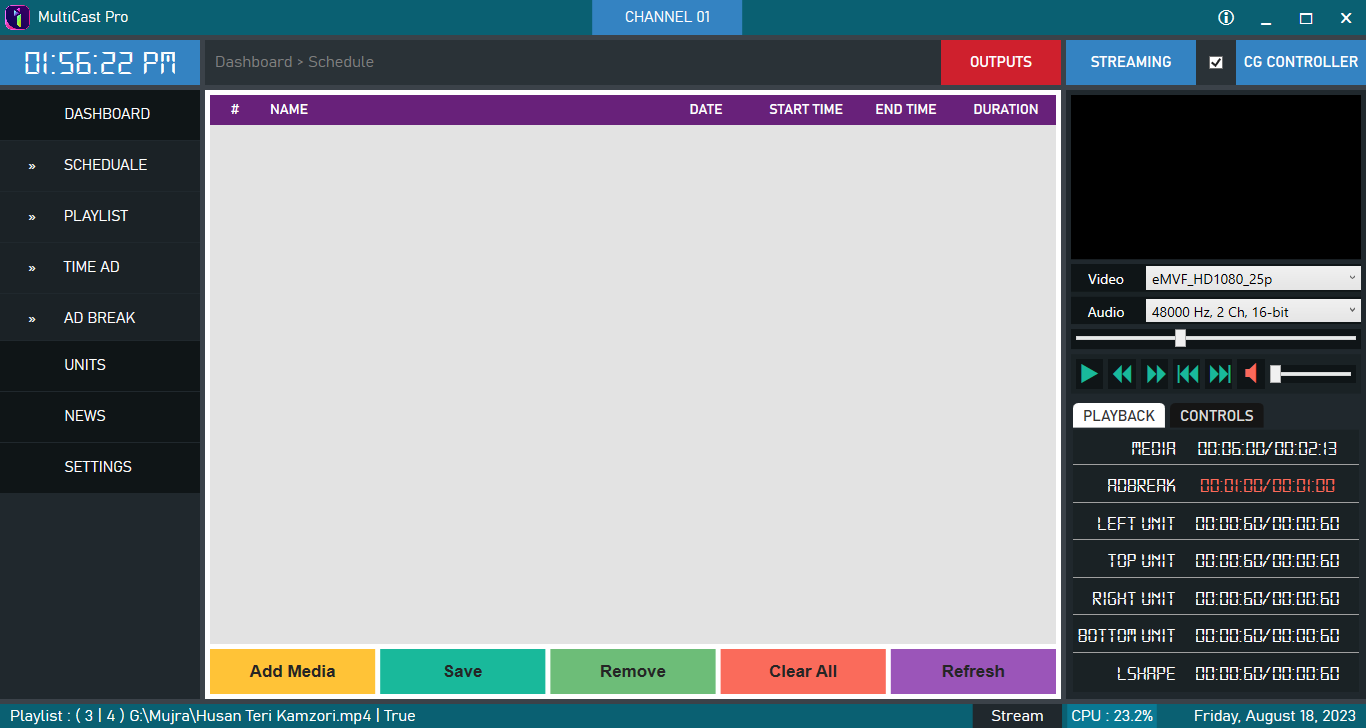
The primary workflow in MultiCast revolves around managing live productions efficiently. Users can switch between multiple scenes, control various media sources, and monitor streaming performance from a centralized interface. This workflow allows broadcasters to deliver professional live content without constantly switching between different software applications.
During production, you can easily transition between cameras, display presentations, play prerecorded videos, and monitor streaming statistics. This organized workflow makes MultiCast suitable for webinars, online events, live conferences, educational sessions, and professional broadcasts where reliability is essential.
Step 4: Add Features (Effects, Tools, and Customization)
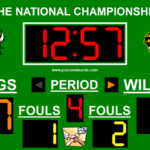
One of the strengths of MultiCast is its collection of production tools and customization options. Users can personalize broadcasts by adding overlays, lower thirds, titles, logos, countdown timers, and branded graphics. These features help create a polished presentation while maintaining a consistent visual identity.
Additional production tools may include:
- Scene transitions
- Text overlays
- Logo placement
- Audio mixing
- Multiple camera switching
- Screen capture
- Live media playback
- Custom layouts
- Streaming destination management
These customization options allow creators to produce engaging broadcasts while maintaining complete control over the viewing experience.
Step 5: Export / Save Output
After completing your production or live event, MultiCast allows you to save project files for future editing or rebroadcasting. If local recording is enabled, the software can also save a high-quality copy of the stream for archival purposes or later distribution.
Before finishing the project, verify that recordings have been saved correctly and that all exported media matches your desired quality settings. Keeping organized backups is always recommended for professional broadcasting workflows.
Best Use Cases for MultiCast
MultiCast download is suitable for a wide variety of live production environments. Its flexible workflow makes it valuable for both individuals and organizations managing professional broadcasts.
Common use cases include:
- Live event streaming
- Corporate presentations
- Online webinars
- Educational classes
- Church services
- Sports broadcasting
- Gaming live streams
- Product launches
- News broadcasting
- Business meetings
- Hybrid events
- Social media live streaming
Its ability to manage multiple media sources efficiently makes it an excellent solution for organizations that require reliable and scalable live production.
Advantages and Limitations
Advantages
MultiCast offers several benefits for content creators and broadcasting professionals.
- Beginner-friendly interface
- Supports multiple media sources
- Professional live production workflow
- Flexible scene management
- Audio and video synchronization tools
- Customizable graphics and overlays
- Suitable for both small and large productions
- Improves workflow efficiency
- Supports professional-quality broadcasting
- Helps manage multiple streaming tasks from one platform
These advantages make MultiCast a practical choice for users looking to simplify complex live streaming projects without sacrificing production quality.
Limitations
Although MultiCast offers many useful features, there are a few considerations before choosing it.
- Advanced features may require time to master.
- High-quality live production benefits from modern computer hardware.
- Large productions may require additional audio or video equipment.
- Some advanced broadcasting configurations may involve a learning curve for beginners.
Most of these limitations are common among professional broadcasting software and become easier to manage with experience.
Alternatives to MultiCast
If you’re comparing broadcasting solutions, several alternatives offer similar capabilities depending on your production requirements.
Some popular alternatives include:
- OBS Studio
- vMix
- Wirecast
- XSplit Broadcaster
- Streamlabs Desktop
- Livestream Studio
- VidBlasterX
- VMix Call
- Restream Studio
- Ecamm Live (macOS)
Each solution provides different strengths in terms of live production, streaming flexibility, collaboration, automation, and broadcasting features. Choosing the right platform depends on your workflow, hardware, and production goals.
Frequently Asked Questions (FAQs)
Is MultiCast suitable for beginners?
Yes. MultiCast provides an organized interface that beginners can learn while still offering advanced features for experienced broadcasters.
Can MultiCast handle professional live broadcasts?
Yes. MultiCast is designed to support professional live streaming workflows, making it suitable for business events, educational sessions, conferences, and online productions.
Can I use multiple cameras with MultiCast?
Yes. Depending on your hardware configuration, MultiCast can manage multiple video input sources for professional multi-camera productions.
Does MultiCast support recording?
Yes. Many production workflows allow users to record broadcasts locally while simultaneously streaming live.
Who should use MultiCast?
MultiCast is suitable for content creators, educational institutions, businesses, production companies, event organizers, churches, sports broadcasters, and anyone looking for a professional live streaming solution.
Conclusion
MultiCast is a powerful broadcasting solution that simplifies professional live streaming while offering the flexibility needed for modern content production. From project setup and media management to live switching, customization, and recording, the software provides a structured workflow that helps users produce reliable, high-quality broadcasts.
Whether you’re streaming educational content, hosting webinars, broadcasting corporate events, or producing live entertainment, MultiCast offers the tools required to create professional presentations with confidence. By understanding its workflow, features, advantages, and alternatives, you can determine whether MultiCast is the right solution for your live production needs and build a more efficient broadcasting process.
Download
Telegram ID
eMail